
Give NotiCord Access in Notion
Use this guide if a page or database is missing in a picker, or if a saved NotiCord setup says its source is no longer available.
Share the content in Notion
The Notion account managing NotiCord's connection needs Full access to the pages or databases you share. A user with the Member role can usually do this. If your workspace restricts connection management to Workspace owners, ask a Workspace owner to connect NotiCord or update its page access.
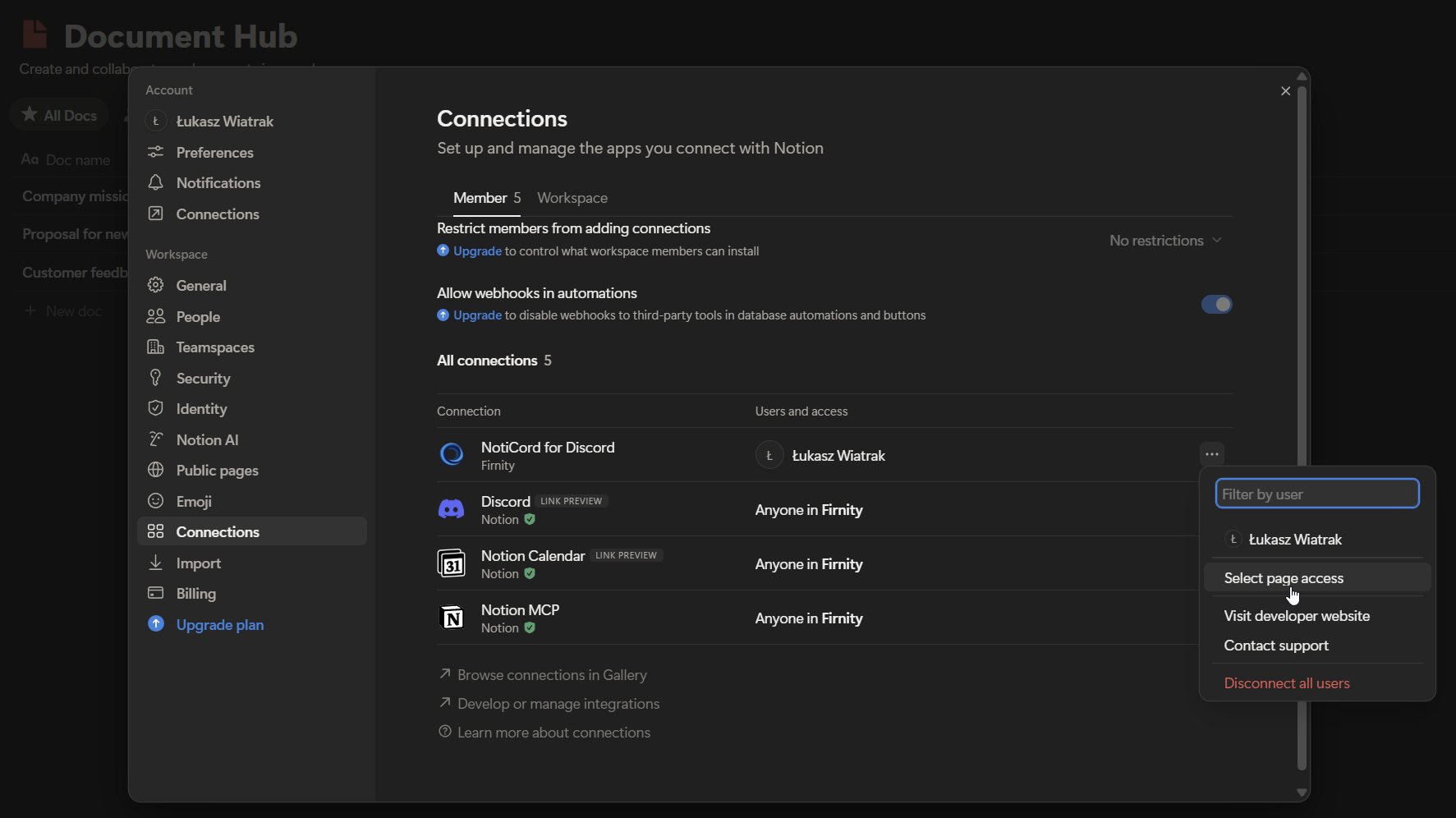
- In Notion, open Settings.
- Open Connections.
- Find NotiCord and click ⋯.
- Click Select page access.
- Share the exact pages or databases you want NotiCord to use.
Refresh the picker in NotiCord
After you update access:
- Reopen the picker.
- Use the picker search box first.
- Paste the Notion URL or ID directly into that same box if the source still does not show up.
- Use Refresh list inside the open picker if the source was shared or created recently.
If NotiCord says the pasted link belongs in the other picker, switch between Database items and Selected pages, then paste the link again.
If it still looks wrong
- Make sure you shared the exact page or database you need.
- Use Selected pages for one page. Turn on Include database items in the page picker if that page is a database row. Use Database items when the setup should cover the whole database.
- If a page rule should watch child pages, share the parent page you selected.
- If your Notion role cannot change NotiCord's connection access, ask a Workspace owner to grant access.
If a saved setup lost access later
Notification rules and scheduled summaries stay visible with a warning or paused state. Create commands and page lists stay visible with a configuration error.
Restore access in Notion, reopen the editor, and save again if needed.